Staff training
Library Staff
Tutorial Map
Find your way around the Staff workbench. Start with the overview or jump to the part you need for your Library role.
Watch the overview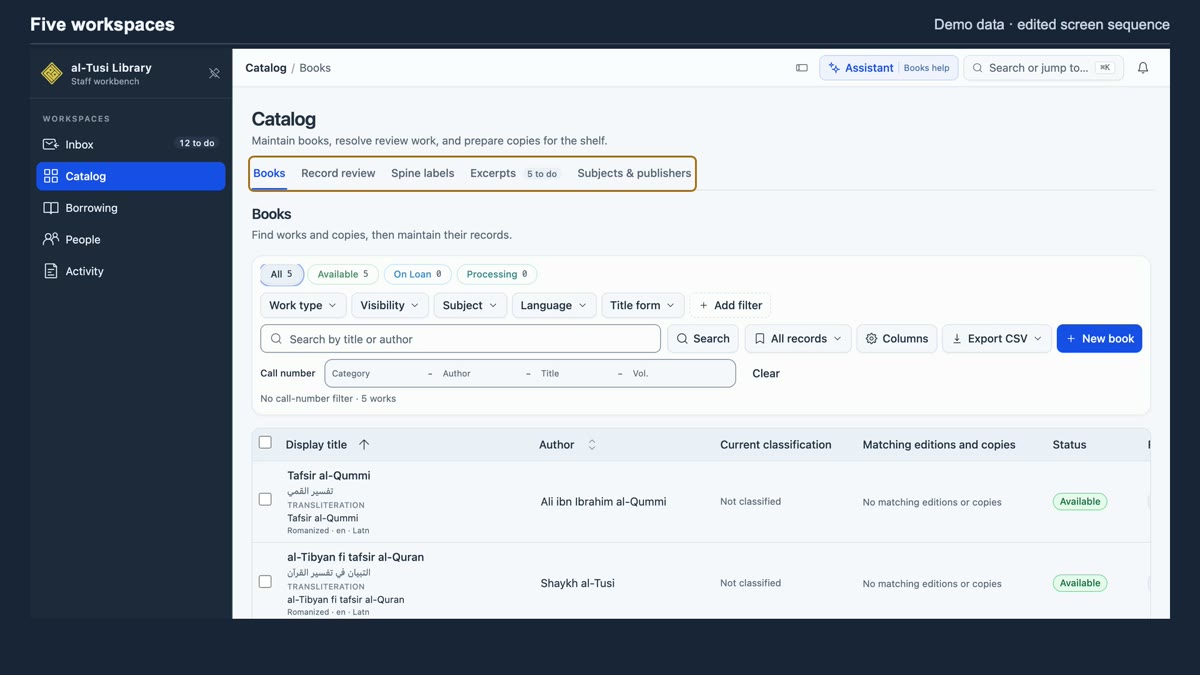 Staff workbench3:44
The map
Choose a chapter to jump to it in the overview.
Lesson 01
Getting started with al-Tusi Library Staff
Librarians and Library admins3:44 · English captions
Tour Inbox, Catalog, Borrowing, People, and Activity. Compare the two roles in People, then use Jump to to open a read-only patron record.
The walkthrough uses synthetic demo records.
Read the English transcript
00:00 Welcome and sign-in
On screen. The opening card shows staff.imam-us.org. The signed-in screens that follow are edited views of the demo workspace.
Welcome to al-Tusi Library Staff, the workbench for running the library. Start at staff.imam-us.org. Signing in to Staff requires an active Library assignment as a librarian or an admin.
Once you're signed in, look to the sidebar on the left. It takes you to Inbox, Catalog, Borrowing, People, and Activity. The tabs across the top pick a view inside the workspace you're in. In this tour you'll see demo records. The highlighted item in the sidebar tells you which workspace is open.
00:39 The five workspaces
On screen. The tour visits Inbox, Catalog, Borrowing, People, and Activity. The active workspace is highlighted in the sidebar.
Start with Inbox when you want to know what needs attention. Needs action gathers items such as overdue loans, borrowing requests, and excerpt submissions. Mentions is where you find discussions that mention you. Open Inbox at the start of a shift to pick your next task.
Where do you find a book or maintain its copies? Open Catalog, then Books. The other tabs are where you review records, prepare spine labels, work with excerpts, and maintain subjects and publishers.
If someone is waiting to borrow a book, go to Borrowing. Requests is where you see what patrons have asked for and work through the queue.
Loans is where you track what's already checked out, including what's overdue. Think of Requests as what patrons are waiting for, and Loans as what has already gone out. The Overdue filter lets you focus on the items that are past their due date.
Where do you look up a colleague or a borrower? Go to People. Staff is the directory for colleagues. Patrons lets you look up an active borrower for circulation.
If you need to see what changed, go to Activity and open Change history. Find the event you need, then follow its record link. Here, the event points to the loan that was checked out.
01:58 Librarian and Admin
On screen. The People → Patrons screen is shown first as Librarian and then as Admin, with the additional Admin tabs outlined. The next views show Admin access controls and the Daily briefs tab.
Here's the same People workspace under two Library assignments. First, Librarian. Librarians handle catalog and circulation work. In People, they have Staff and Patrons. The patron record is read-only.
Now look at the Admin view. Library admins can do the same catalog and circulation work. They also see Library access, Library access requests, and Feedback in People. Compare the tabs across the top. Both roles can open Patrons.
Use Patrons to look up a borrower. Use Library access to manage someone's Library role, status, or borrowing access. Both views are under People, and they serve different jobs.
Library admins can also decide Library access requests, send librarian invitations, and handle patron feedback. In Activity, they can view Daily briefs. These additional views come with the Library admin assignment.
03:01 Find a patron quickly
On screen. The Jump to People search shows the patron: prefix and a result for Reader 07. The final record has no edit controls.
Let's finish with one shortcut. From any workspace, open Search or jump to at the top of Staff.
Choose People to use the patron search scope. The search box adds the patron prefix for you.
Enter the borrower's name. We'll use Reader 07, a demo borrower. Choose the result with their name to open the record.
Staff takes you to the read-only Patron record in People. You can also reach the Patrons list directly from the People workspace.
03:30 Coming up
That's your starting map for al-Tusi Library Staff. In later lessons, we'll cover cataloging and spine labels, requests and returns, and how Library admins manage Library access.
In later lessons
Cataloging and spine labels
Find and maintain books and copies, then prepare their labels.
Requests and returns
Work through borrowing requests and check books back in.
Managing Library access
Review access requests and manage Library assignments.